-
Sinapanga Court, Bondo
•
-Click on the Button in the centre of the Picture to start.-Click on the Full Screen button to enter Full Screen-Click on the Hotspots to navigate between different scenes, click and drag to look around each scene.-You can also navigate directly to various scenes by activating the thumbnail menu button.
-
Bondo Town Feb 2022
•
360° Virtual Tour Click the Top Right of the picture to enter Full Screen. Click on the arrows to navigate between scenes, and click & drag to look around each scene
-
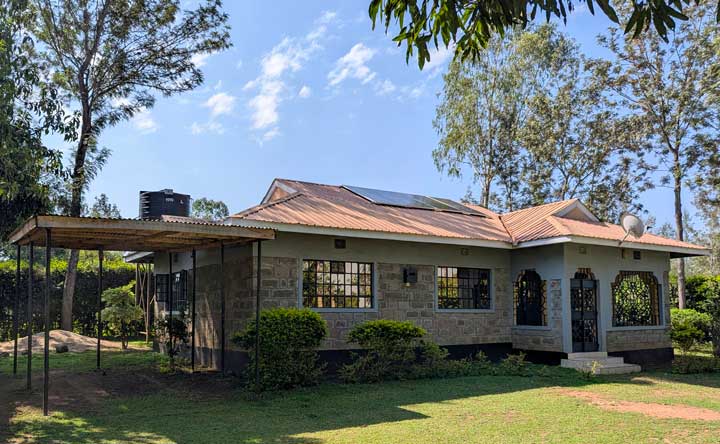
360° Tour of the Inner Grounds, QuantiScale Studio, Bondo
•
360° Virtual Tour Click the Top Right of the picture to enter Full Screen. Click on the arrows to navigate between scenes, and click & drag to look around each scene
-
360° Tour of the Outer Grounds, QuantiScale Studio, Bondo
•
360° Virtual Tour Click the Top Right of the picture to enter Full Screen. Click on the arrows to navigate between scenes, and click & drag to look around each scene
-
QuantiScale Studio, Bondo. Custom Tour
•
360° Virtual Tour -Click on the Picture to start.-Click on the button at the bottom of the picture to enter Full Screen-Click on the Hotspots to navigate between each scene, click and drag to look around each scene.-You can also navigate direct to various scenes by activating the thumbnail menu button at the top…
-
Maranda Education Centre, Bondo
•
360° Virtual Tour Click the Top Right of the picture to enter Full Screen. Click on the arrows to navigate between scenes, and click & drag to look around each scene
-
Maranda High School, Bondo
•
360° Virtual Tour Click the Top Right of the picture to enter Full Screen. Click on the arrows to navigate between scenes, and click & drag to look around each scene
-
May Hotel, Bondo Virtual Tour
•
360° Google Street View Tour Click the Top Right of the picture to enter Full Screen. Click on the arrows to navigate between scenes, and click & drag to look around each scene 360° Custom Virtual Tour
-
Residence in Bondo
•
360° Virtual Tour Click the Top Right of the picture to enter Full Screen. Click on the arrows to navigate between scenes, and click & drag to look around each scene
-
Jaramogi Oginga Odinga Mausoleum & Museum (Google Street View)
•
360° Virtual Tour Click the Top Right of the picture to enter Full Screen. Click on the arrows to navigate between scenes, and click & drag to look around each scene.